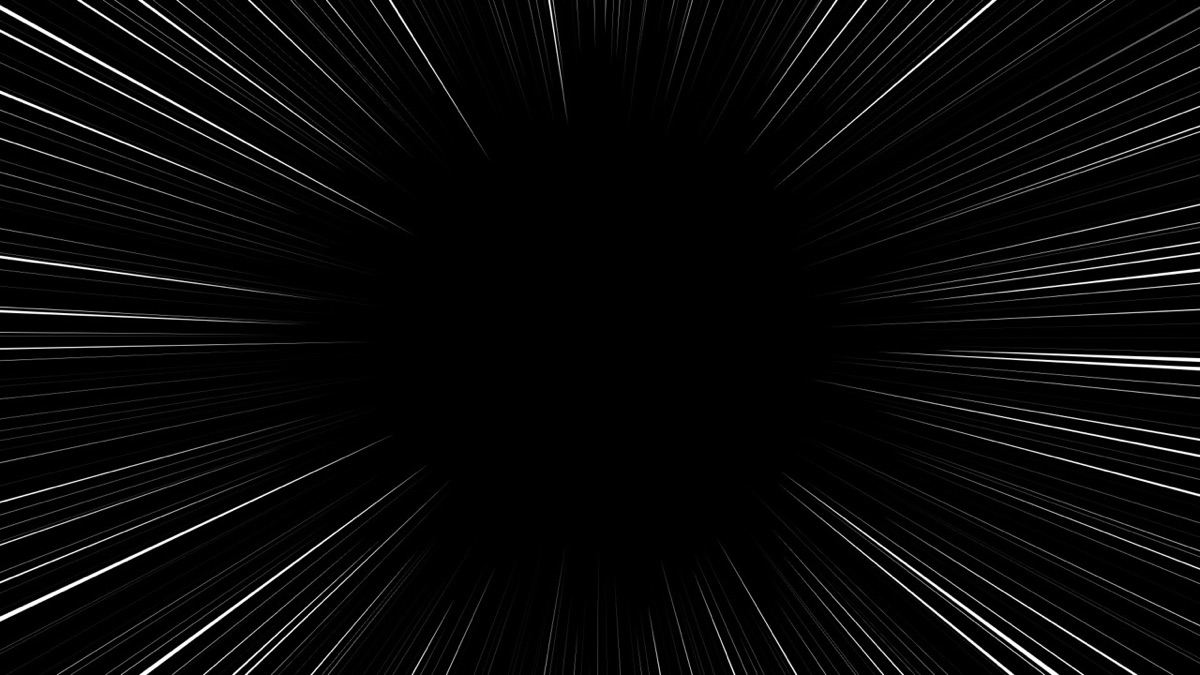
A plugin that creates manga-style speed lines, either radial or flowing in one direction. You can clear the lines from part of the frame, and adjust the frame rate and speed as you would in animation.
Radial in Mode draws speed lines that converge on one point, and Directional draws lines that flow in one direction. In Radial, Twist can also bend the lines into a spiral.
02
Clear Zone
The Clear Zone settings in Region clear the center to any size and shape, and switching Region to Edge Bands lays lines only along the edges of the frame.
03
Animation FPS · Boil
Animation FPS, Boil Amount, and Flicker make the lines jitter as if they were hand-drawn, and Loop Frames creates a seamless loop.
04
Effects (Halftone Fill, Ink Splatter, and more)
Add Halftone Fill, Chromatic Split, Soft Halo, Depth Layers, or Ink Splatter from Effects on top of the lines.
Quick start
Follow these steps in order the first time.
Apply Effect › TMC › TMC Speedline to a new solid or an adjustment layer.
Set Mode to Radial (lines converging on a point) or Directional (lines flowing one way). For Radial, place Center on your subject; for Directional, set the flow direction with Direction.
Set the amount and thickness of the lines in Lines: Line Count and Length for Radial, Spacing for Directional, and Line Width for the thickness.
Clear space for your main subject with Clear Zone in Region, and set the speed and frame rate of the line motion in Animation.
Parameter guide
Listed in the same order as the Effect Controls panel.
Effect Controls · TMC SpeedlineClick a group to expand it
Basic parameters6
Mode
RadialDirectional
Center
The center of the effect. Drag it in the Composition panel to move it.
Direction
Aspect
Twist
Random Seed
Changes the random pattern. The same value always gives the same result.
Lines10
Line Count
Spacing
Sets the average spacing between lines in Directional mode.
Density
Sets how densely lines fill the frame: the chance that a line is drawn in each slot. Lower values leave more gaps.
Line Width
Length
Inner Radius
Dashed
When on, breaks the lines into dashes in Directional mode.
Dash Length
Dash Gap
Dash Length Jitter
Style6
Taper Start
Taper End
Taper Sharpness
Edge Softness
Roughness
Sets how rough the line outlines get, as if drawn by hand.
Loads one of 12 ready-made palettes into the gradient. None leaves the current gradient as it is.
12 palettes
Gradient Editor
An editor for building a gradient by adding, moving, and deleting color stops
Selected Stop Color
Sets the color of the color stop selected in the gradient editor.
Cycle Repetitions
Sets how many times the gradient repeats.
Phase
Shifts the repeating gradient; 360° moves it by one full cycle.
Jitter6
Position Jitter
The amount of random variation in each element's position
Width Jitter
The amount of random variation in each element's thickness
Length Jitter
Inner Jitter
Opacity Jitter
The amount of random variation in each element's opacity
Speed Jitter
Animation6
Animation FPS
Sets how many times per second the line shapes (Boil Amount) and Flicker change. Lower values look choppier, like hand-drawn animation; at 0 they don't change.
Loop Frames
Sets how many changes (counted in Animation FPS frames) the pattern goes through before returning to its start. At 0 it never repeats.
Boil Amount
Sets how much the lines are redrawn at each change, so they wobble like hand-drawn animation. At 0% the line shapes stay fixed. The name comes from boil, an animation term.
Flow Speed
Sets how fast the pattern travels along the lines, in pixels per second. It moves the dashes in Directional mode and the rough outlines from Roughness; negative values reverse the direction.
Snap Flow to Loop
Fits the flow to the Loop Frames cycle so it repeats without a seam.
Flicker
How much the brightness flickers irregularly
Region13
Clear Zone Position
Clear Zone Size
Sets the size of the area left empty with no lines. Its position is set with Clear Zone Position; at 0 nothing is cleared.
Clear Zone Aspect
Clear Zone Rotation
Clear Zone Squareness
Sets whether the empty area is closer to an ellipse or a rounded rectangle.
Clear Zone Feather
Region
Chooses whether speed lines cover the full frame (Full Frame) or only bands along the edges (Edge Bands).
Full FrameEdge Bands
Top Edge
Bottom Edge
Left Edge
Right Edge
Band Width
Band Feather
Mask6
Mask
Chooses the mask or layer that defines where the effect applies.
Invert Mask
Flips the inside and outside of the mask to switch where the effect applies.
Mask Amount
Mask Feather
The width over which the mask edge is softened
Mask Expand
Mask Falloff
Line WidthOpacityBoth
Effects14
Halftone Fill
Halftone Pitch
Halftone Dot Size
Halftone Angle
Chromatic Split
Offsets the R, G, and B channels to look like print misregistration.
Split Angle
Soft Halo
Sets the strength of a faint soft fringe around the lines that makes them look softer.
Halo Radius
Depth Layers
Chooses how many front-to-back layers the speed lines are split into. Each layer differs in size, speed, opacity, and width, which adds depth.
123
Layer Parallax
Sets how much size, speed, opacity, and width differ between layers. Higher values give more depth.
Ink Splatter
Scatters dots around the lines like splattered ink. At 0 there is no splatter.
Splatter Size
Splatter Spread
Splatter Elongation
Sets how much the splattered drops stretch along the line direction.
Chooses how colors are calculated when compositing. Direct uses the pixel values as they are; Linear (sRGB) converts sRGB values to linear before blending, so blend modes like Linear Dodge (Add) and Screen mix the way light does.
DirectLinear (sRGB)
Practical tips
To use only the lines, set Composite to Lines Only and blend them with the footage below using the layer's blend mode. The effect's own Blend Mode is used only with Over Source.
You can pick a mask you've drawn on the layer right from the Mask group to keep the lines out of that area.
The lines are fixed in layer space, so the pattern doesn't shift even in low-resolution previews.
Where to use it
Radial speed lines for a character's entrance or a moment of surprise