Five minutes is enough to get from first install to using the plugins. Installing, activating, and updating are all handled in one companion app, TMC Hub.
Getting started
After you buy, just follow these five steps.
Step 1
Buy on Gumroad
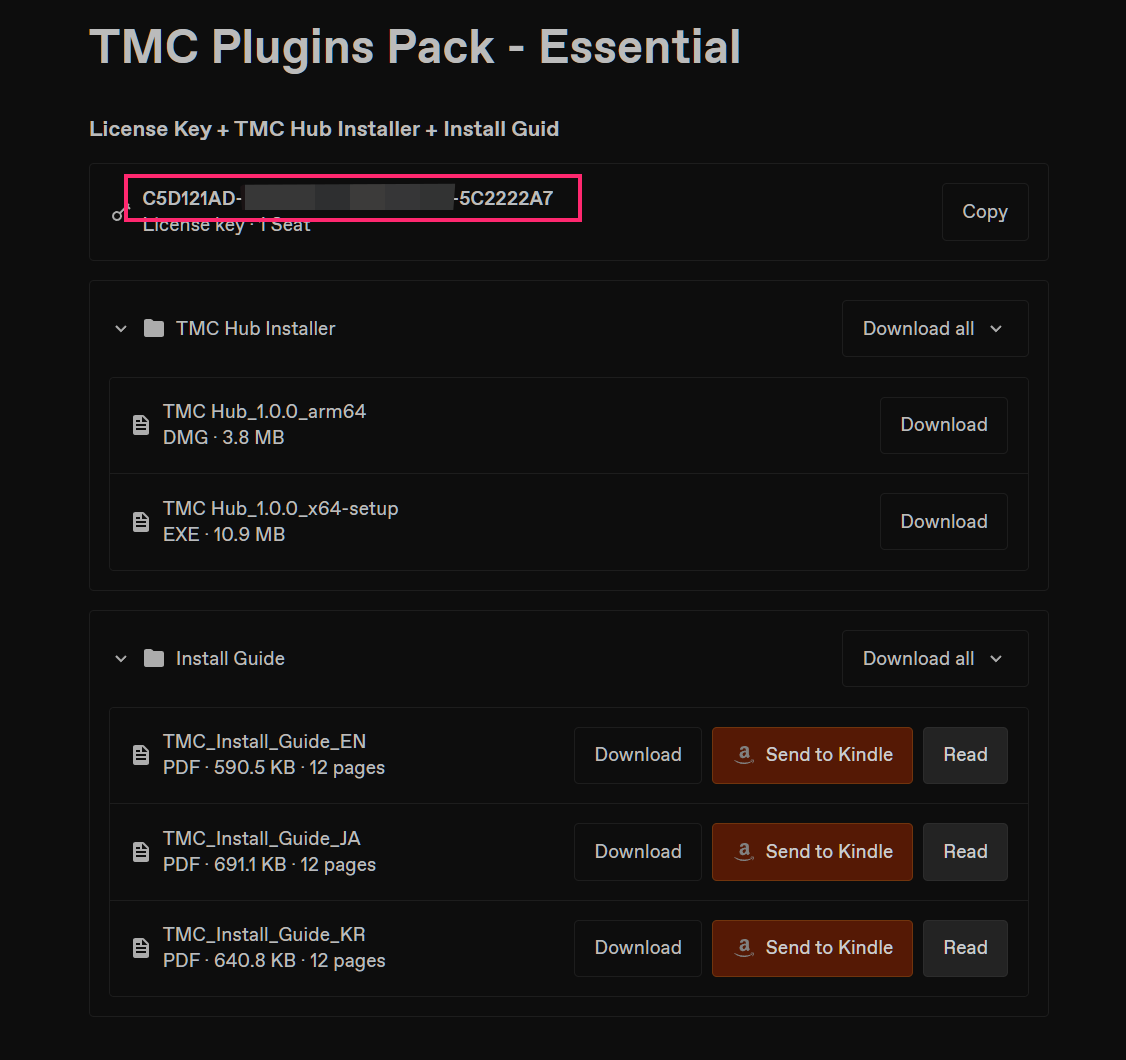
The Gumroad page that opens right after purchase shows your licence key at the top, with the TMC Hub installer below it. The same key also comes in your purchase receipt email.
The plugins themselves are not inside the installer. TMC Hub always downloads the latest versions, so no matter when you buy, you start with the newest plugins.
Step 2
Install TMC Hub
Windows: Run TMC Hub_x.x.x_windows-setup.exe. It's a per-user install that needs no administrator rights, so it's done in a minute.
macOS: Open TMC Hub_x.x.x_mac-universal.dmg and drag TMC Hub into the Applications folder.
If a warning appears the first time you open it, see First launch below.
Step 3
Activate your licence
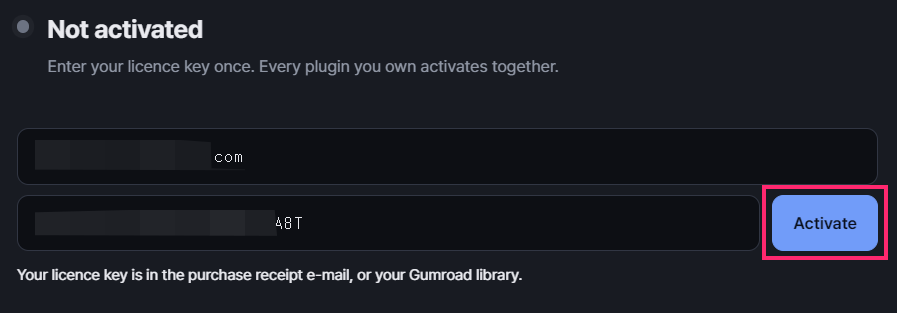
In the Licence tab of TMC Hub, enter the email address you purchased with and your licence key, then press Activate. The two have to match, so enter exactly the address you paid with.
Within a few seconds your plan and device count appear, and you're done.
Step 4
Install the plugins
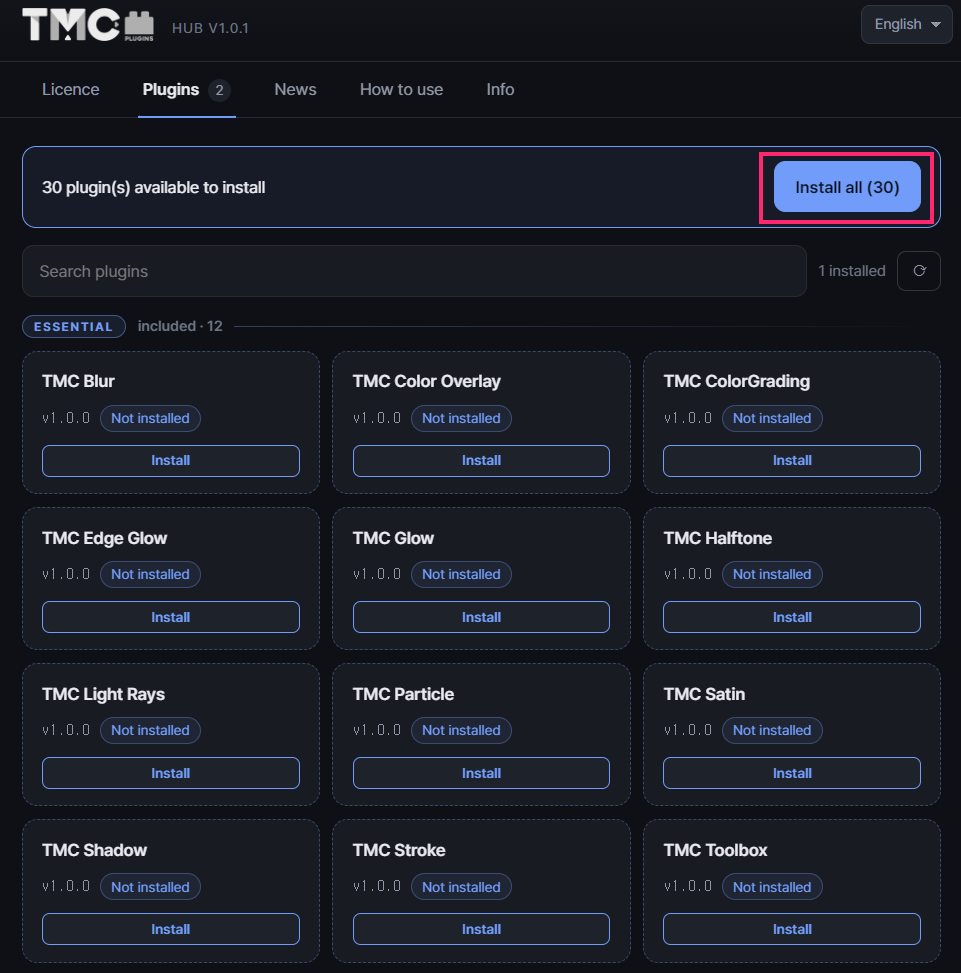
With After Effects closed, press Install all in the Plugins tab to install every plugin in your plan. To install only the ones you need, press the Install button on each card.
Plugins are installed into a shared system folder, so Windows shows a UAC prompt and macOS asks for your password once.
Step 5
Use them in After Effects
Launch After Effects and search for TMC in the Effects & Presets panel to see the installed plugins.
Open Toolbox as a panel from the Window menu.
First launch
These are standard notices the operating system shows the first time you run a new program from a small developer. Every plugin file is integrity-checked with SHA-256 when it's downloaded, and a tampered file is never installed.
Windows · SmartScreen
When the blue "Windows protected your PC" screen appears, click More info.
Click Run anyway. After it has run once, Windows won't ask again.
If your browser blocks the download, open the download list and choose Keep → Keep anyway.
macOS · Confirmation dialog
macOS 14 or earlier: In Applications, right-click TMC Hub → Open → Open again in the dialog.
macOS 15 or later: After moving the app to Applications, run this command in Terminal: xattr -dr com.apple.quarantine "/Applications/TMC Hub.app"
If it's still blocked, launch TMC Hub once to bring up the block dialog, then go to System Settings → Privacy & Security and click Open Anyway at the very bottom.
Updates
TMC Hub checks for new versions when it starts and every 6 hours while it's running.
Step 1
Update plugins
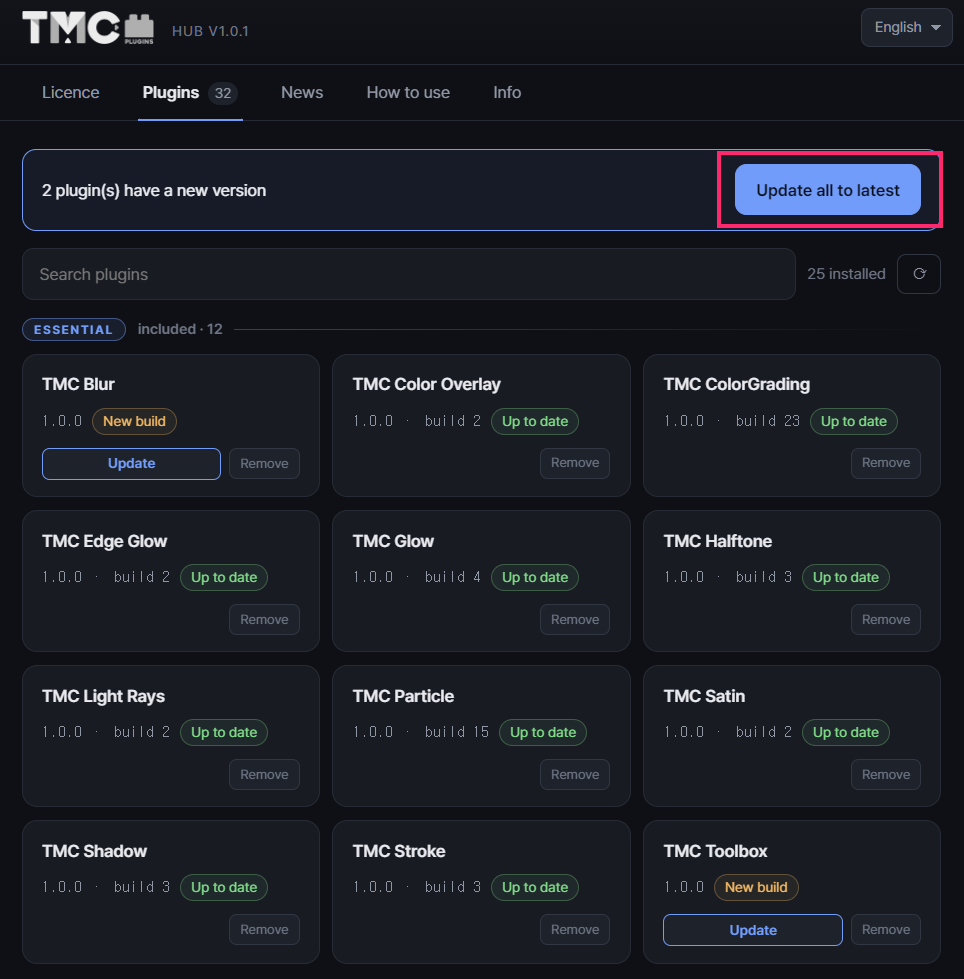
Plugins that have a new version get an Update button. To update everything at once, use Update all to latest at the top. Quit After Effects before updating.
Step 2
Update TMC Hub itself
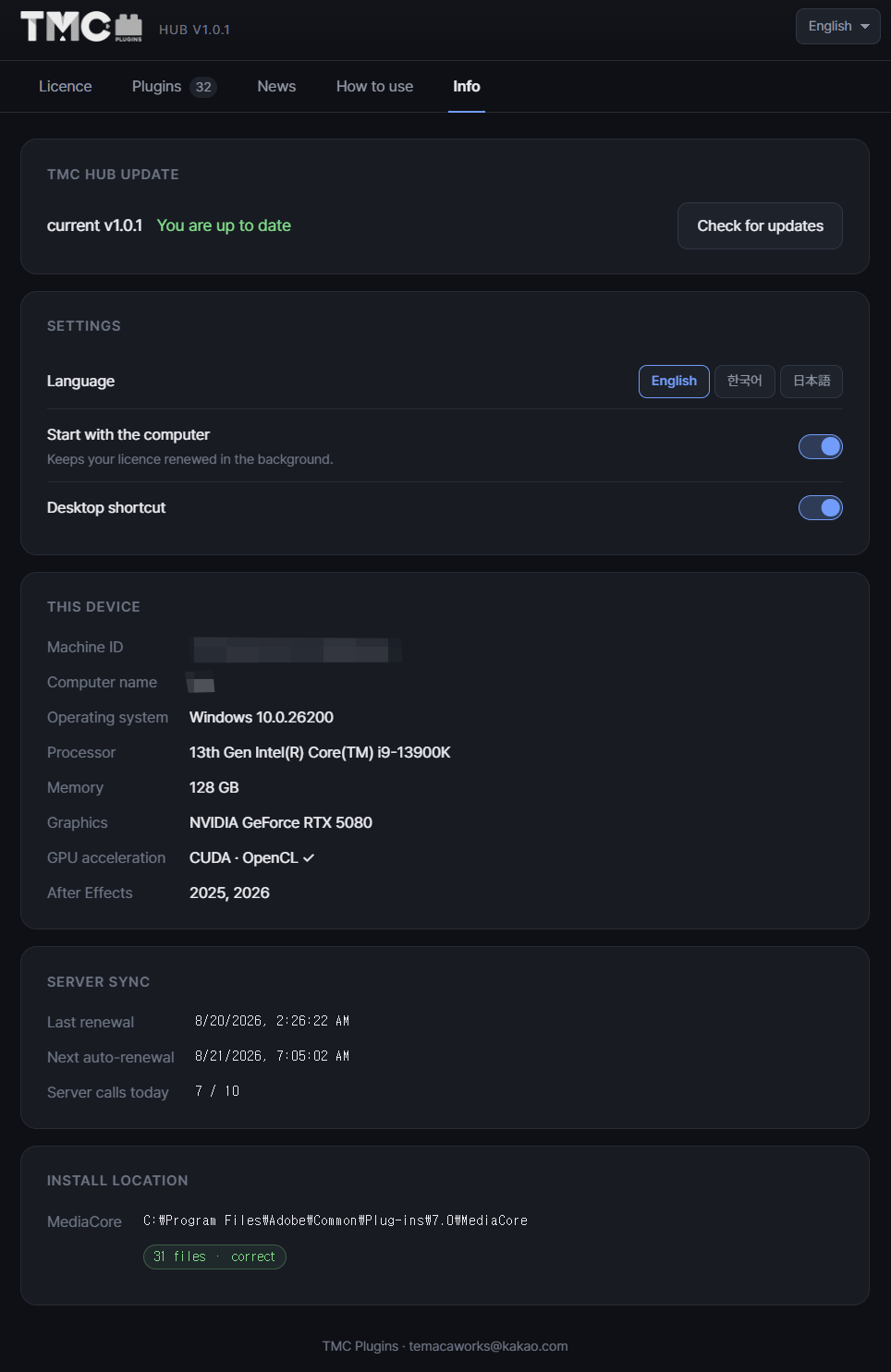
Check the TMC Hub Update card at the top of the Info tab. On Windows, press Update now and it reinstalls automatically. On macOS, the new dmg opens; drag TMC Hub into Applications to replace the old one.
Managing devices
One key works on up to 2 computers at the same time. When you switch computers, deactivate the licence, then activate it again on the new one.
Press Deactivate this device in TMC Hub on the old computer and its seat frees up right away. There is no limit on how often you can do this.
If you reformat and reinstall the same computer, it is still recognized as the same device and doesn't use another seat.
If a broken or lost computer that you can't deactivate is holding a seat, contact me with your purchase email and what happened. I'll clear the device registration for you.
Sharing or reselling a key is not allowed. Seats are managed by device fingerprint.
From Essential to Pro
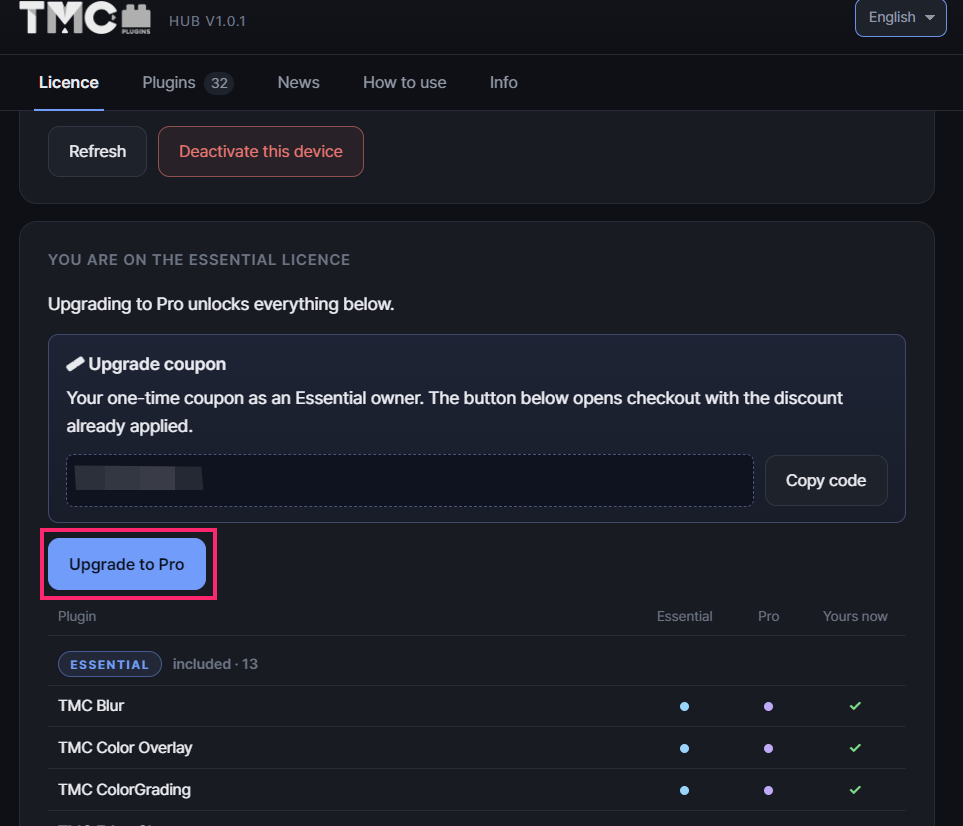
Essential buyers automatically receive a personal one-time coupon. Buying Pro with it gets you a new Pro licence key, which you then use to activate again in TMC Hub.
Step 1
Buy with the coupon, then activate with the Pro key
The upgrade coupon appears in the plan card in the Licence tab. Press Upgrade to Pro to open a checkout page with the coupon applied, where you can buy Pro for $100.
After payment, a new Pro licence key arrives in your purchase receipt email and your Gumroad library. It can take about 5 to 10 minutes for the upgrade to go through.
Your Essential key can no longer be activated, and the computers registered with it are removed. On each computer you use, enter the Pro key in the Licence tab and press Activate. The 2-computer limit stays the same.
Troubleshooting
Find your symptom and try the steps from the top, in order.
The plugins don't show up in After Effects
① Check that your After Effects version is 2024 or later (Windows: Help → About After Effects; Mac: After Effects → About After Effects). 25.6 or later is recommended.
② Quit After Effects completely, then launch it again.
③ In the TMC Hub Plugins tab, check that the plugin isn't marked Not installed.
④ If a Move to MediaCore button is showing in the Plugins tab, press it to clean up copies left in other folders.
⑤ Type TMC into the Effects & Presets search box.
On Windows I get "the following plugins could not be loaded"
This happens when the Microsoft Visual C++ Redistributable (x64) is missing or out of date. Run the official Microsoft installer, then restart the PC.
If the same error still appears, check that your antivirus hasn't quarantined the files.
Activation fails
① Check that you entered exactly the email you used for the Gumroad payment.
② Delete any spaces before or after the key.
③ Check the reason shown on screen. If it says "You have used every device slot", press Deactivate this device in TMC Hub on a computer you no longer use.
Installing or removing plugins is denied
Quit both After Effects and aerender, make sure you allowed the UAC or password prompt, then try again. If it still fails, restart the computer and try again.
It was working, then changed to "Lease expired"
Usually this means the automatic renewal fell behind because the computer was offline for a long time. Check your internet connection and press Renew licence in the Licence tab, and it recovers right away.
Rendering is slow
In the Info tab, check which acceleration mode this computer uses (CUDA · OpenCL · Metal · CPU Only), and try updating your GPU driver to the latest version.
Frequently asked questions
Can I install the plugins by copying them manually?
I don't recommend it. Version tracking, integrity checks, and cleanup all work through TMC Hub, so files you copy yourself can be left out of updates or get loaded twice.
If I uninstall TMC Hub, are the plugins removed too?
No. Uninstalling the Hub leaves your plugins and licence in place. However, updates and activation renewal are handled by the Hub, so both of those stop once it's uninstalled.
To remove the plugins as well, run Remove all before you uninstall the Hub.
How many computers can I use it on?
One licence key works on up to 2 computers at the same time, and you can mix Windows and Mac.
When you switch computers, press Deactivate this device in TMC Hub on the old computer and the seat frees up right away. There's no limit on how many times you can do this. If you reformat the same computer and reinstall, it's still recognized as the same device.
Do I need to stay connected to the internet?
No. You only need a connection to install and activate. After that, TMC Hub renews your activation automatically.
Each renewal stays valid for 3 days. About 3 days after you last ran TMC Hub, the plugins become unlicensed and a watermark appears on your output. So if you've been offline for a long time, connect and press Renew licence once in the Hub.
Windows Defender flags TMC Hub as a Trojan
TMC Hub contains no malware. A version that had been working without problems is being wrongly flagged (a false positive) on some PCs because Windows Defender changed its detection criteria.
I've submitted it to Microsoft as a false positive, and Microsoft's analysis also came back "no malware" for both the cloud and the client. Once the final determination is made, the Defender detection will be lifted automatically.
Waiting while it's quarantined or deleted won't affect your PC or your data, and your licence won't disappear or need to be bought again. However, if you can't run TMC Hub for more than 3 days, a watermark will appear on your output, so please keep that in mind when planning your work.
To fix this for good, I'm in the process of getting a code signing certificate. When a signed version is released, I'll let you know in the Hub's News tab.
Please send a screenshot of the problem, a screenshot of the device card in the TMC Hub Info tab, and the email address you purchased with. You don't need to send your licence key.