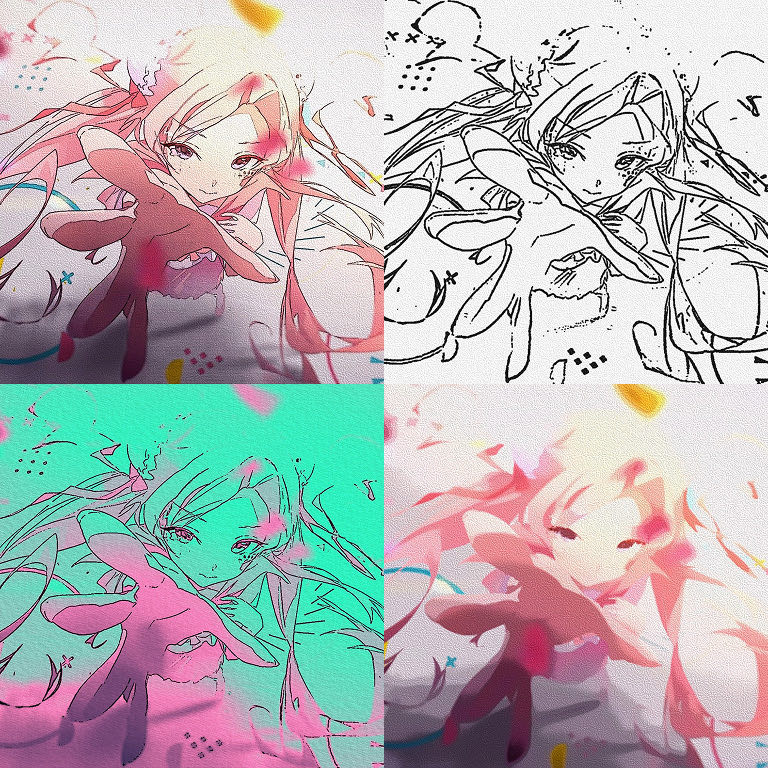
Gives live-action footage, layers, and images a manga, anime, or cel-shaded look. It includes cel shading, ink lines, and abstraction, and several presets make it easy to apply.
Pick Anime Cel, Comic, Webtoon Flat, Pencil, Ink, Painterly, or Outline Only, and the related parameters are set all at once.
02
Line Mode
Choose a Line Mode (DoG, XDoG, Flow) and adjust thickness and sensitivity to pull out pen lines.
03
Color & Shading · Color Treatment
Set the shading steps with Shading Mode (Soft Posterize, Cel Shade, Posterize RGB) in Color & Shading, and the overall color with Color Mode (Vivid (Neon), Natural, Pastel, Flat Palette, Duotone, Palette (Nearest)) in Color Treatment.
04
Show view
Use the Show pop-up menu to view the Abstraction, Shading, Lines Only, or Flow Field stage on its own while you fine-tune.
Quick start
Follow these steps in order the first time.
Apply Effect › TMC › TMC Toon to a footage or image layer.
Choose a look such as Anime Cel or Comic in Look Preset.
Use Radius (px) in Abstraction to set how much detail gets smoothed out.
Set the pen lines with Line Width (px) and Threshold in Line, and the color steps with Levels in Color & Shading.
Parameter guide
Listed in the same order as the Effect Controls panel.
Effect Controls · TMC ToonClick a group to expand it
Basic parameters2
Look Preset
7 presets
Show
Chooses which stage to show. Final is the finished result; the others (Abstraction, Shading, Lines Only, Flow Field) show intermediate stages for checking.
FinalAbstractionShadingLines OnlyFlow Field
Abstraction6
Abstraction
Chooses the first-stage pass that flattens fine detail into simple, cartoon-like areas of color. Smooth softens while keeping outlines, Painterly makes brushstroke-like patches, and Off skips this stage.
OffSmoothPainterly
Radius (px)
Iterations
How many times the calculation repeats. Higher values give a stronger effect and slower renders.
Edge Preserve
Sets how much the real outlines are kept intact while simplifying.
Painterly Sharpness
Sets how sharp the brushstroke edges stay in Painterly mode.
Quality
Calculation quality. Higher values are smoother but render more slowly.
DraftNormalHigh
Color & Shading10
Shading Mode
OffSoft PosterizeCel ShadePosterize RGB
Levels
Band Softness
Band Phase
Shifts all the boundaries between shading bands together.
Sets how many of the 6 slots above are actually used.
Palette Dither
Sets how much the banding from snapping to the palette is broken up into fine dots.
Texture9
Texture
Chooses a base texture, such as paper or canvas, to lay over the image. Off adds no texture.
OffPaperCanvasGrainHatchRough
Texture Amount
Texture Scale (px)
Texture Contrast
Relief
Sets how much lighting raises the texture so the paper grain looks tactile.
Light Angle
The direction the light comes from
Line Break
Sets how much the texture eats into and breaks the lines so they look drawn with a dry brush.
Apply To
Chooses whether the texture applies to shading only (Shading), lines only (Lines), or both (Both).
ShadingLinesBoth
Texture Seed
Line15
Line Mode
OffDoGXDoGFlow
Line Width (px)
Threshold
The level at which the effect starts to apply
Softness
Sensitivity
Sets how faint a brightness change is still picked up as a line.
Edge Detect
Ink (Dark Side) draws lines only on the dark side of an edge; Contour (Both Sides) draws them on both sides. Contour (Both Sides) suits photos without drawn linework.
Ink (Dark Side)Contour (Both Sides)
Color Edges
Sets how much edges between different colors of similar brightness also become lines. Useful for photo sources.
Denoise
Shadow Boost
Strengthens line detection in dark areas so lines there are picked up more easily.
Flow Smoothing
In Flow mode, sets how much the direction field the lines follow is smoothed so the lines don't jitter.
Line Source
Chooses whether lines are extracted from the simplified image (Abstracted) or from the original (Original).
AbstractedOriginal
Suppress Small Edges
Sets how much short, small lines are removed to keep the image clean.
Thickness
Thickens (+) or thins (−) the extracted lines by this many pixels.
Line Color
Line Opacity
Composite3
Output
Chooses whether to composite the result over the original or output the effect on its own.
FullLines on SourceLines on WhiteLines on Transparent
Line Blend
NormalMultiply
Alpha Edge Lines
When on, also draws lines along alpha edges (the layer's silhouette).
Other parameters1
Strength
Practical tips
If you only need the lines, set Output in Composite to Lines on Transparent and place the layer over other layers.
Add paper texture with Paper, Canvas, or Hatch in Texture.
Each frame is calculated independently, so results stay stable while scrubbing and with Multi-Frame Rendering.
Where to use it
Making live-action footage look like an animated MV
Turning a background photo into a webtoon-style background