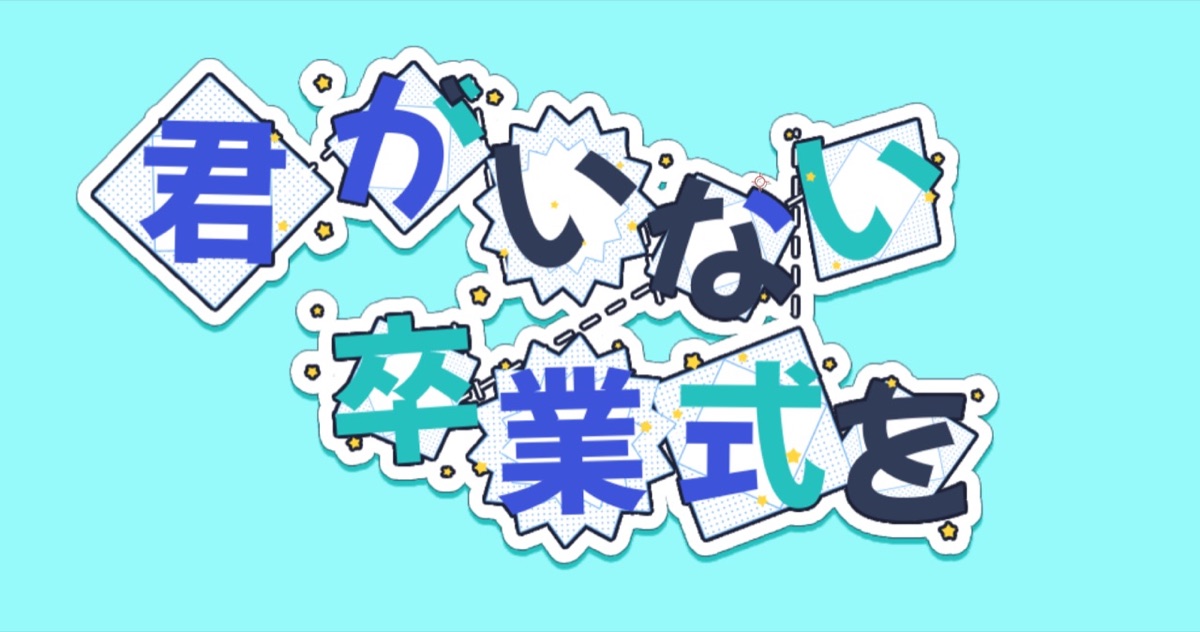
A plugin you apply to text layers. It has a range of features for decorating text, such as giving each character a different color, placing any layer behind each character as a box, or applying textures.
Reads the text outlines and splits them stroke by stroke. You can color the dot of a lowercase “i” differently from its stem without breaking the text into shape layers.
02
Every decoration feature in one effect
Fill palettes, Texture, Edge FX (Torn Paper, Crayon, Wobble), Word Box, Sprinkle, and Connector are all included.
03
Char Adjust
Turn on Edit Characters (click/drag in comp) in Char Adjust, then drag a character in the Composition panel to move it, Shift-drag to resize it, and Ctrl/Cmd-drag to rotate it. Decorations move along with the character.
04
Animation · Wiggle
Animation brings characters in one after another by Order (Reading Order, Random, Reverse). Per-character or per-stroke Wiggle loops with no visible jump using Loop Frames in Wiggle › Animation.
Quick start
Follow these steps in order the first time.
Apply Effect › TMC › TMC Typo Designer to a text layer.
In Fill, turn on Enable Fill, choose Per Character (whole glyph) or Per Component (each stroke) in Color Per, and apply a palette such as Rainbow, Ransom Note, or Candy from Preset.
Turn on Word Box to place boxes behind the letters, or Sprinkle to scatter sparkles.
For the entrance animation, turn on Enable Animation in Animation, set Order and Stagger, then keyframe Progress from 0% to 100%.
Parameter guide
Listed in the same order as the Effect Controls panel.
Effect Controls · TMC Typo DesignerClick a group to expand it
Output6
Output
Chooses whether to composite the result over the original or output the effect on its own.
DecoratedOriginalDecorations OnlyDebug Component IDDebug Cluster ID
Show Overlay (Comp panel)
When on, draws the text analysis over the Composition panel. It does not appear in renders.
Overlay Draws
Chooses what the overlay draws: glyph outlines (Contours), per-character boxes (Cluster Boxes), or strokes (Components).
ContoursCluster BoxesComponents
Solo Module
Shows only the chosen module so you can check it on its own. The other decoration modules are turned off while it's selected.
NoneFillTextureEdge FXWord BoxSprinkleConnector
Global Seed
Expansion Margin
Sets how far decorations may extend beyond the layer, as a percentage of the font size (500% by default). Raise it if decorations get cut off; lower it if renders are slow.
Geometry5
Freeze Layout @ Ref Time
Takes the character grouping at Layout Ref Time (sec), meaning which strokes belong to which character, and uses it on every frame, so decorations don't flicker when characters overlap during animation.
Layout Ref Time (sec)
Grouping
AutoPer ComponentManual Gap
Manual Gap
Curve Quality
Fill17
Enable Fill
Preset
6 presets
Color Per
Per Character (whole glyph)Per Component (each stroke)
Assign
Chooses the rule for assigning palette colors to each unit.
SequentialRandomRandom (No Adjacent)Hue Ramp
Seed
Changes the random pattern. The same value always gives the same result.
Colors Used
Color 1
Color 2
Color 3
Color 4
Color 5
Color 6
Color 7
Color 8
Hue Ramp Start
Hue Ramp Span
Fill Opacity
Texture14
Enable Texture
Texture Per
Per Character (whole glyph)Per Component (each stroke)
Textures Used
Assign
Chooses the rule for assigning textures to each unit.
SequentialRandomRandom (No Adjacent)
Seed
Changes the random pattern. The same value always gives the same result.
Mapping
Chooses how the texture is placed on the characters.
FitFillStretchTile
Tile Size
Composite
ReplaceOver OriginalMultiplyScreen
Texture Opacity
Scale Jitter
The amount of random variation in each element's size
Rotation Jitter
The amount of random variation in each element's rotation
Offset Jitter
Offset X (scroll)
Offset Y (scroll)
Edge FX12
Enable Edge FX
Choke (+) / Spread (-)
Edge Softness (px)
Rough Amount
Sets how much noise tears away at the edges.
Rough Detail
Rough Octaves
Rough Seed
Rough Style
CustomTorn PaperCrayonWobble
Rough Bias
Evolution
The evolution stage of the noise pattern. Keyframe it to bring the pattern to life.
Hold FPS (boil)
Per-Char Phase
Word Box21
Enable Word Box
Box Per
Per Character (whole glyph)Per Component (each stroke)
Shape
CircleRounded RectTextureStarHexagonBlob
Box Texture
Box Texture 2
Box Texture 3
Box Texture 4
Size Mode
Fit GlyphUniform
Size / Padding
Corner Radius
Box Color
Scale Jitter
The amount of random variation in each element's size
Rotation Jitter
The amount of random variation in each element's rotation
Seed
Changes the random pattern. The same value always gives the same result.
Opacity
Follow Char Alpha
When on, the decoration's size and opacity follow the character's alpha, so it disappears along with the character.
Stroke Width
Stroke Color
Offset Jitter
Apply Every Nth
Adds a box to only one in every N units. At 1, every unit gets one.
Blob Wobble
Sprinkle19
Enable Sprinkle
Shape
DotRingStarSparklePlusTriangleSquareTextureHeart
Sprinkle Texture
Placement
Chooses where the decorations are scattered.
Around TextOn InkNear EdgeAnywhere in Box
Density
Sets how densely decorations are scattered, relative to the font size.
Coverage
Sets the share of available spots that actually get a decoration.
Size
Size Jitter
Rotation
Rotation Jitter
The amount of random variation in each element's rotation
Sprinkle Color
Opacity
Seed
Changes the random pattern. The same value always gives the same result.
Region Margin
Sets how far the scatter area extends beyond the characters.
Follow Char Alpha
When on, the decoration's size and opacity follow the character's alpha, so it disappears along with the character.
Opacity Jitter
The amount of random variation in each element's opacity
Use Fill Palette
Twinkle
Sets how much the decorations twinkle on their own over time.
Twinkle Speed
Connector20
Enable Connector
Connect Per
Per Character (whole glyph)Per Component (each stroke)
Style
SolidDashedDottedTexture
Connector Texture
Width
Dash Spacing
End Padding
Vertical Offset
Max Gap
Draw
Behind TextOver Text
Connector Color
Opacity
Curve
StraightArcWave
Arc Sag
Wave Amplitude
Wave Frequency
Taper Ends
Draw On
Sets how much of each connector is drawn. Keyframe it from 0% to 100% to draw the connectors on.
Draw On Stagger
Dash Gap
3D Distribute6
Enable 3D Distribute
Distribute Per
Per Character (whole glyph)Per Component (each stroke)
Z Step
Sets the Z distance added for each unit (character or stroke).
Z Jitter
Z Offset
Seed
Changes the random pattern. The same value always gives the same result.
Animation7
Enable Animation
Animate Per
Per Character (whole glyph)Per Component (each stroke)
Progress
Drives the whole reveal. Keyframe it from 0% to 100% to bring the characters in; at 100% everything is shown.
Order
Reading OrderRandomReverse
Stagger
Offsets the start of each character (or stroke) so they appear one after another. At 0% they all appear at once; at 100%, strictly one by one.
Seed
Changes the random pattern. The same value always gives the same result.
Animation FPS
The frame rate used to make motion look stepped. Lower values look choppier, like hand-drawn animation.
Animation › Position3
Fly-In Distance
Direction
Random Direction
Animation › Rotation1
From Rotation
Animation › Scale1
From Scale
Animation › Opacity1
Fade In
Char Adjust2
Edit Characters (click/drag in comp)
Reset Adjustments
Wiggle8
Enable Wiggle
Wiggle Per
Per Character (whole glyph)Per Component (each stroke)
Position
Rotation
Scale
Frequency
Complexity
The number of detail layers stacked in the noise. Higher values give finer, more complex detail.
Seed
Changes the random pattern. The same value always gives the same result.
Wiggle › Animation2
Animation FPS
The frame rate used to make motion look stepped. Lower values look choppier, like hand-drawn animation.
Loop Frames
Practical tips
To see how a particular decoration is applied, use Solo Module to check Fill, Word Box, Sprinkle, and the others one at a time.
To make the edges jitter like hand-drawn animation, step them at a low frame rate with Hold FPS (boil) in Edge FX.
All animation is calculated from the current time alone, so it responds right away when you scrub the timeline.
Where to use it
MV lyric typography and keyword emphasis
Ransom-note, sticker, and picture-book style titles
Infographic text with connecting lines drawn between words