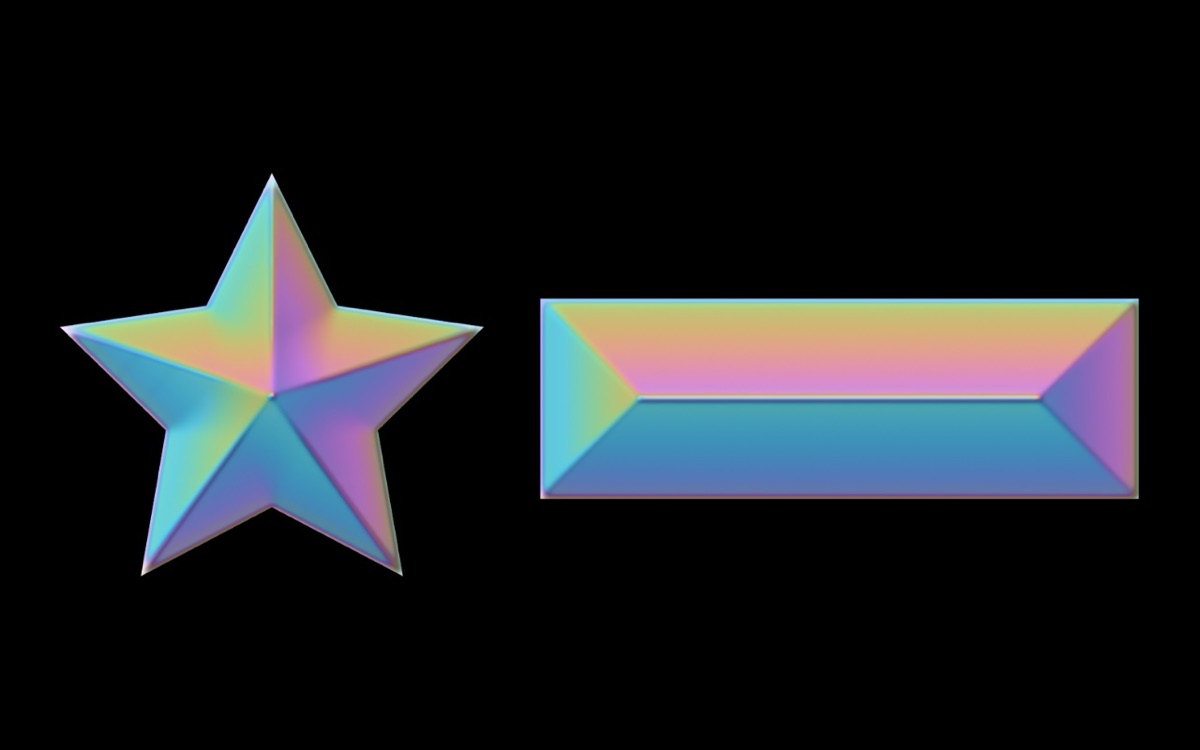
Switch materials in one step with Matte, Plastic, Glossy, Metal (Chamfer), Chrome, Glass, and Foil.
02
6 Profiles
Choose the edge cross-section from Round, Linear (Chamfer), Soft Round, Concave, Steps, and Ridge.
03
6 Chromatic Color styles (holographic dispersion)
The 6 Chromatic Color styles (Prism (Holographic), Rainbow Sweep, and more), Custom Colors for picking your own two colors, and Iridescence create holographic-style dispersion.
04
Outer rim
Set Placement to Outer and the buffer expands to draw a raised rim outside the alpha.
Quick start
Follow these steps in order the first time.
Apply Effect › TMC › TMC Bevel to text or a logo.
Choose a material in Material Preset.
Set the width and depth of the cut with Bevel Width and Depth.
Set the light direction with Light Angle and Elevation in Light.
Parameter guide
Listed in the same order as the Effect Controls panel.
Effect Controls · TMC BevelClick a group to expand it
Basic parameters9
Material Preset
Choosing one of the 7 material looks (Matte/Plastic/Glossy/Metal (Chamfer)/Chrome/Glass/Foil) sets Gloss, Roughness, Fresnel Rim, Profile, and other related values at once. Custom leaves the current values as they are.
7 presets
Bevel Width
Depth
Profile
Chooses the side profile of the bevel slope: Round, Linear (Chamfer), Soft Round, Concave, Steps, or Ridge.
RoundLinear (Chamfer)Soft RoundConcaveStepsRidge
Smoothness
Grain Reduction
Smooths out the fine radial grain that can appear on the bevel slope (30% by default).
Ridge Softness
Rounds off the ridges where slopes from opposite edges meet, and the sharp points where they converge. It also reduces flicker at corners when the layer is scaled (50% by default).
Placement
Chooses whether the bevel sits inside the alpha edge (Inner) or outside it as a raised rim (Outer).
InnerOuter
Direction
UpDown
Light4
Light Angle
The direction the light comes from
Elevation
Light Intensity
Ambient
Sets the base lighting that reaches the surface evenly from every direction.
Material3
Gloss
Roughness
Sets how widely reflections and highlights spread. 0% is mirror-sharp and 100% is fully diffuse.
Fresnel Rim
Sets the strength of the Fresnel reflection that brightens edges at grazing viewing angles.
Surface5
Noise
Noise Scale
The size of the noise pattern
Noise Seed
Changes the noise pattern. The same value always gives the same pattern.
Wrinkles
Sets the strength of a long, folded wrinkle pattern on the surface. Use it for a puffy, balloon-like look.
Wrinkle Scale
Reflection3
Reflection
Reflect Sky
Sets the color of the upper (sky) part of the fake environment that Reflection shows.
Reflect Ground
Sets the color of the lower (ground) part of the fake environment that Reflection shows.
Chromatic5
Chromatic
Chromatic Color
Chooses the color style of the rainbow created by Chromatic (Pastel Shimmer by default). Custom Colors uses the two colors directly, blending from Fringe Color A to B, and the other styles build a rainbow from Fringe Color A and B.
The first color that sets the Chromatic colors. With Custom Colors it is used on the outer-edge side of the slope, and with the other styles it is combined with Fringe Color B as the basis of the rainbow.
Fringe Color B
The second color that sets the Chromatic colors. With Custom Colors it is used on the ridge (inner) side of the slope, and with the other styles it is combined with Fringe Color A as the basis of the rainbow.
Iridescence
Sets how much the color shifts with the viewing angle.
Sets the color of the color stop selected in the gradient editor.
Cycle Repetitions
Sets how many times the gradient repeats.
Phase
The angle that shifts the repeating gradient. Turning it 360° moves the gradient by one full cycle, and keyframing it makes the colors flow.
Inner Color
The tint color for the inner side of the bevel when Use Gradient is off. The tint blends from Outer Color to this color across the slope.
Outer Color
The tint color for the outer (outline) side of the bevel when Use Gradient is off
Composite5
Render
Chooses whether to put the bevel over the original layer (Layer + Bevel) or to output only the bevel, painted with Surface Color instead of the layer's colors (Bevel Only).
Layer + BevelBevel Only
Surface Color
The surface color used instead of the layer's colors when Render is Bevel Only. With Placement set to Outer, it is also the base color of the outer rim.
Supersample
Calculates the bevel shape at 2x or 3x resolution to reduce jagged edges. It also steadies bevel jitter when Scale is animated.
Off2x3x
Shade Blend
Sets how the bevel shading is blended with the original pixels.
NormalOverlayAddScreenMultiplySoft Light
Strength
Practical tips
To turn flat letters into a puffy, balloon-like surface, try raising Noise and Wrinkles in Surface.
To color the inner and outer parts of the bevel differently, raise Amount in Bevel Tint and set Inner Color and Outer Color. For more colors, turn on Use Gradient to run a gradient across the bevel width.
To composite just the bevel, change Render in Composite to Bevel Only.