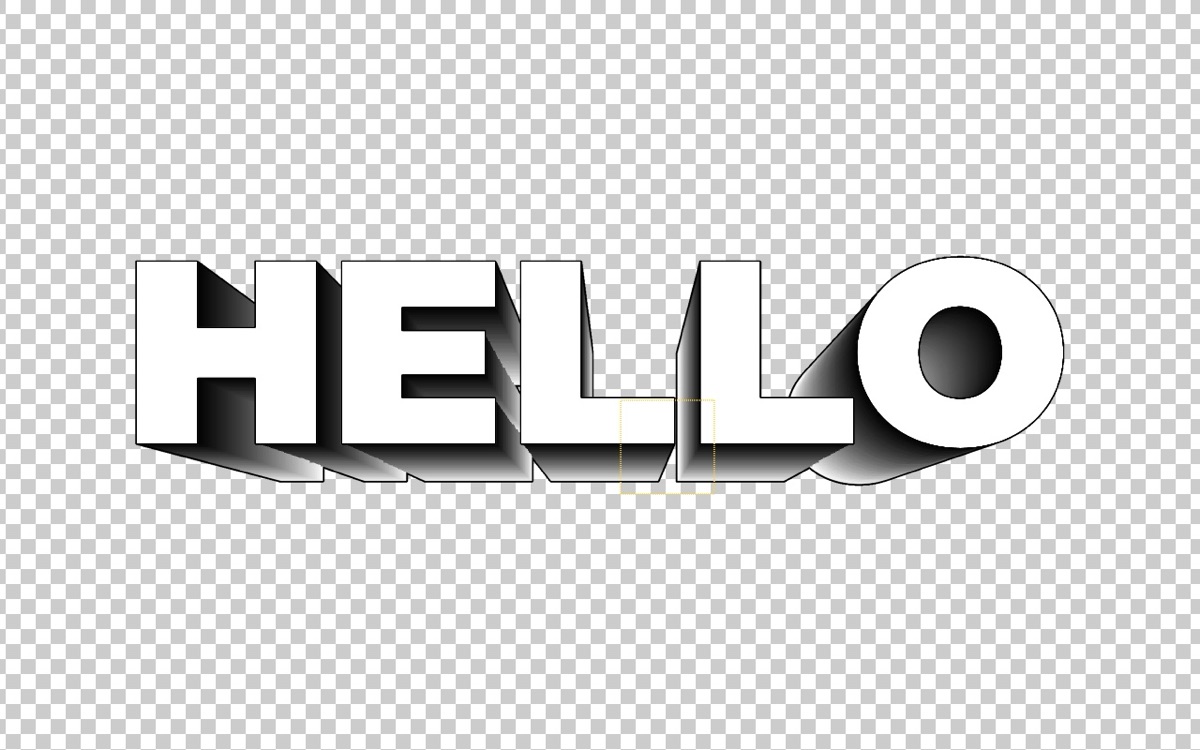
Choose Directional, Vanishing, or 3D, and adjust the front and back extrusion lengths and the vanishing point.
02
3D Geometry
3D Geometry covers 4 Bevel Profiles (Round, Chamfer, Concave, Steps), Taper, Twist, and even Shell (Hollow), which hollows out the shape.
03
Create 3D Null Link
Control rotation or the full transform with a null made by the Create 3D Null Link button, without writing any expressions yourself.
04
Shading from comp lights
Auto (Comp Lights) in Lighting reads the comp's Parallel, Spot, Point, and Ambient lights. Matcap materials are also supported.
Quick start
Follow these steps in order the first time.
Apply Effect › TMC › TMC Extrude to a text or logo layer.
Set Mode to Directional, Vanishing, or 3D.
Adjust the extrusion length and direction in Style, and choose how the sides are colored with Side Fill Mode in Fill Color.
In 3D mode, the extruded shape turns in 3D as you move the comp camera. Light is set in Lighting: the default, Auto (Comp Lights), reads the comp's lights, and Manual lets you set the direction with Light Angle and Light Altitude.
Parameter guide
Listed in the same order as the Effect Controls panel.
Effect Controls · TMC ExtrudeClick a group to expand it
Source3
Extrude Source
Alpha Threshold
Edge Smooth
Radius for smoothing jagged alpha edges in the SDF silhouette
Style13
Mode
DirectionalVanishing3D
Inner Extrude
Checkbox that extrudes inward from the silhouette instead of outward
Extrusion Direction
Vanishing Point
Extrusion Length Back
Length the extrusion extends behind the silhouette (px)
Extrusion Length Front
Length the extrusion extends in front of the silhouette (px)
Camera Perspective
Direction Lean
With Camera Perspective on, how far to lean the extrusion toward Extrusion Direction
Stroke Width
Stroke Color
Stroke Opacity
Stroke Position
OutsideInsideCenter
Stroke Target
Front SilhouetteExtruded OutlineBoth
3D Geometry8
Bevel Size
Bevel Profile
RoundChamferConcaveSteps
Bevel Steps
How many steps the bevel is split into with the Steps profile
Bevel Placement
Front + BackFront Only
Taper
How much the cross-section shrinks toward the back of the extrusion
Twist
Shell (Hollow)
Checkbox that makes the extrusion a hollow shell
Shell Thickness
3D Transform12
Anchor
Anchor Z
Position X
Position Y
Position Z
Scale
Rotation X
Rotation around the X axis
Rotation Y
Rotation around the Y axis
Rotation Z
Rotation around the Z axis
Linked 3D Null
Link Mode
OffRotation OnlyFull Transform
Create 3D Null Link
Button that creates a 3D null at the layer and links this effect's Rotation X/Y/Z (and Position X/Y/Z when Link Mode is Full Transform) to it with expressions
3D Camera2
Camera
Comp CameraInternal
Internal FOV
Fill Color10
Inherit Layer Color
When checked, the front fill uses the source layer's own colors instead of a chosen color
Front Fill Color
Side Fill Mode
SolidShadedGradientDarken from Front
Side Fill Color
Side Gradient Preset
Pop-up menu that loads one of 12 palettes into the side gradient
12 presets
Side Gradient
Selected Stop Color
Sets the color of the color stop selected in the gradient editor.
Cycle Repetitions
Sets how many times the gradient repeats.
Phase
The angle that shifts the repeating gradient (360 degrees = one full cycle)
Fill Opacity
Lighting4
Light Source
Auto (Comp Lights)Manual
Light Angle
The direction the light comes from
Light Altitude
Ambient
3D Surface13
Side Material
Inherit NearestSolidGradientDarken from Front
Bevel Material
AutoSolidInherit Nearest
Bevel Color
Back Material
AutoSolid
Back Color
Diffuse
Specular
Shininess
AO Amount
Strength of the ambient occlusion
AO Radius
Soft Shadow
Matcap Layer
Sets the layer containing a sphere material preview image
Calculation quality. Higher values are smoother but render more slowly.
DraftMediumHigh
Anti-aliasing
Reduces jagged edges. Raise it for the final render.
Analytic+ SSAA 2x+ SSAA 4x
Motion Blur
OffOn (Comp Shutter)
MB Samples
Auto24816
Depth of Field
DOF Focus
DOF Blur
Debug View
Diagnostic pop-up menu for viewing intermediate results such as SDF, Normals, Depth, Steps, and AO (grayed out in the current version, with no effect on the render)
OffSDFNormalsDepthStepsAO
Practical tips
To extrude using another layer's shape, assign that layer to Extrude Source.
For a gradient on the sides, set Side Fill Mode to Gradient and pick one of the 12 palettes in Side Gradient Preset.
When you apply it to a 3D layer, After Effects may show a camera-related notice, but it doesn't affect the render.
Where to use it
Title and logo reveals with a sense of depth
Pop 3D sticker-style text
3D typography scenes with the camera turning around the letters