TMC Plugins
Pro

TMCEcho

Frame-based echoes and motion trails

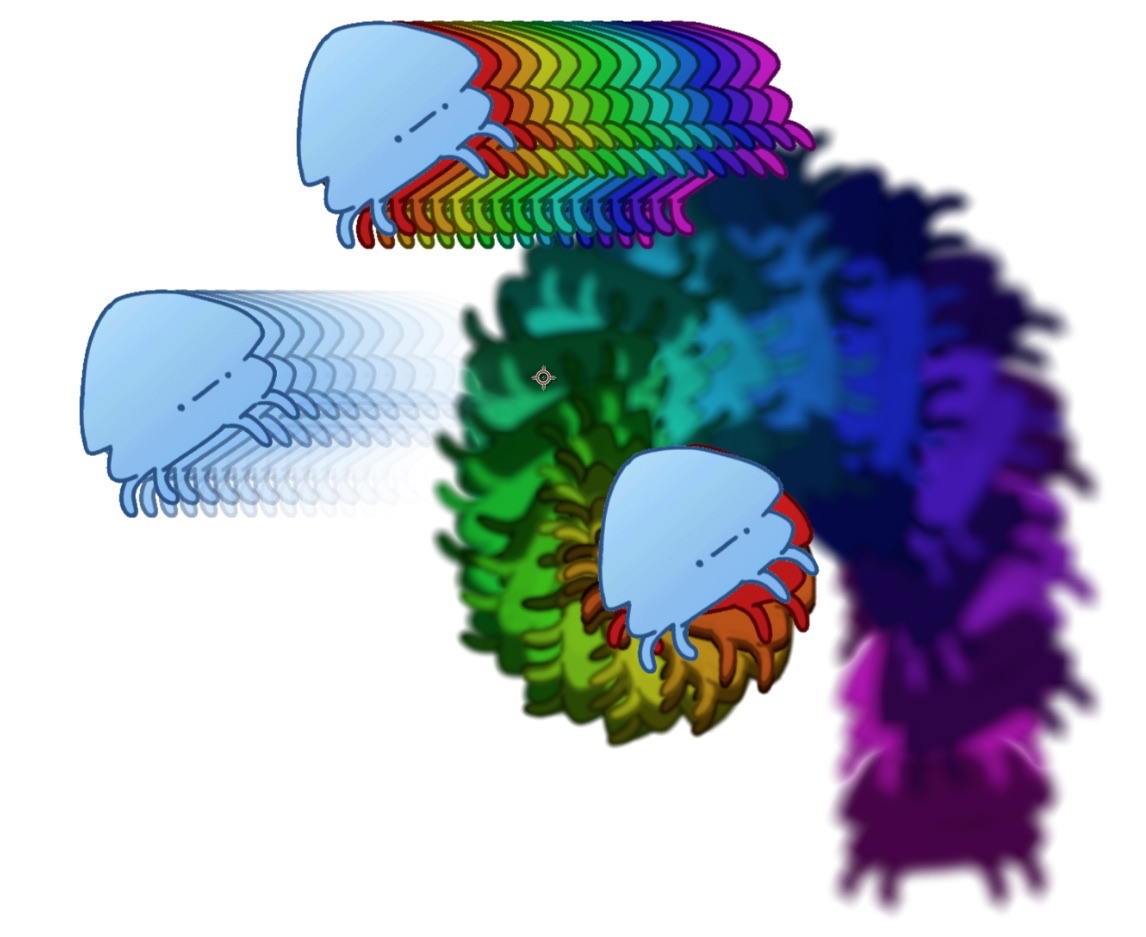
Leaves afterimages behind a moving layer to create motion trails. It works in frames rather than seconds, and you can adjust the color or timing of each echo separately. It is faster and lighter than the built-in After Effects Echo effect.

Effect menu
Effect › TMC › TMC Echo
Acceleration
CPU (works without a GPU)
Color depth
8 · 16 · 32 bpc
Multi-Frame Rendering
Supported
Parameters
50

Key features

01

Spacing in frames

Spacing is set in frames rather than seconds, so values hold up when you switch between 24fps and 30fps.

02

Follow Layer Transform

With Follow Layer Transform on, each echo reads and applies the layer's transform, so there's no need to precompose.

03

Per-Echo Color

Color echoes as a rainbow or a gradient with Per-Echo Color's Gradient, Hue Ramp, and Solid modes and 12 preset palettes.

04

Stepped (Hold) timing

Set Timing Mode to Stepped (Hold) and the echoes hold still, then jump forward at each boundary. It's a look that is hard to get with the built-in Echo.

Quick start

Follow these steps in order the first time.

  1. Apply Effect › TMC › TMC Echo to a moving layer.
  2. Set the number of echoes with Echo Count and the spacing with Echo Spacing (frames).
  3. If the layer itself is moving, turn on Follow Layer Transform.
  4. Use Opacity Falloff to set the curve the echoes fade along, and Per-Echo Color to set their colors.

Parameter guide

Listed in the same order as the Effect Controls panel.

Effect Controls · TMC EchoClick a group to expand it
Basic parameters8
Echo Count
Echo Spacing (frames)
Spacing Mode
ManualAdaptive (Constant Gap)
Echo Gap (px)
Target on-screen gap between echoes in Adaptive mode (px)
Direction
PastFutureCentered
Timing Mode
Whether echo times are sampled continuously or held in steps
SmoothStepped (Hold)
Step Interval (frames)
In Stepped mode, how many frames pass between updates
Follow Layer Transform
Makes the echoes follow the layer's own transform animation as well

Opacity Falloff5
Start Opacity
End Opacity
Falloff Curve
LinearEase InEase OutS-CurveExponentialCustom Curve
Falloff Gamma
Opacity Curve
Curve editor for setting echo opacity with a hand-drawn curve (used when Falloff Curve is Custom Curve)
Composite4
Operator
BehindIn FrontAddScreenLightenDarkenAverage
Source Opacity
Output
Chooses whether to composite the result over the original or output the effect on its own.
NormalTrails Only
Working Space
Which color space the echoes are blended in (Auto/sRGB/Linear)
AutosRGB (linearize)Linear
Per-Echo Color11
Colorize
How the echoes are colored (Off/Gradient/Hue Ramp/Solid)
OffGradientHue RampSolid
Use Preset Palette
Pop-up menu that loads one of 12 preset palettes into the Gradient Editor (used when Colorize is Gradient)
12 palettes
Gradient Editor
An editor for building a gradient by adding, moving, and deleting color stops
Selected Stop Color
Sets the color of the color stop selected in the gradient editor.
Cycle Repetitions
Sets how many times the gradient repeats.
Phase
The angle that shifts the repeating gradient (360 degrees = one full cycle)
Hue Start
Hue Span
How many degrees the hue rotates from the first echo to the last
Solid Color
Tint Strength
Colorize Source
Whether to apply the same color to the source frame as well as the echoes
Transform Trail5
Position X / Echo
Horizontal offset added with each echo
Position Y / Echo
Scale / Echo
Rotation / Echo
Transform Center
Pivot point for the Transform Trail scale and rotation
Jitter7
Random Seed
Changes the random pattern. The same value always gives the same result.
Time Jitter (frames)
Randomly shifts the time each echo is taken from, in frames
Position Jitter
The amount of random variation in each element's position
Rotation Jitter
The amount of random variation in each element's rotation
Scale Jitter
The amount of random variation in each element's size
Opacity Jitter
The amount of random variation in each element's opacity
Hue Jitter
RGB Split3
Split Amount
Split Angle
Per-Echo Ramp
How much the RGB split grows on later echoes (0% = the same amount on every echo)
Progressive Blur2
Blur Amount
Per-Echo Ramp
How much the blur grows on later echoes (0% = the same amount on every echo)
Matte2
Matte Layer
Matte
OffAlphaLumaAlpha InvertedLuma Inverted
Motion Mask3
Motion Mask
Checkbox that leaves echoes only where something actually moved on screen
Threshold
The level at which the effect starts to apply
Softness

Practical tips

  • To make the echoes spread out even while the original stays still, use Transform Trail to accumulate position, scale, and rotation with each echo.
  • To use only the echoes, choose Trails Only under Output in Composite.
  • 3D layers are handled as flat approximations and don't respond to 3D cameras.

Where to use it

  • Rainbow afterimages trailing a character's movement
  • A motion trail left behind as a title passes
  • Stepped afterimages that hold and move on the beat

Pairs well with

Technical notes

  • Runs on the CPU only. Echoes whose final weight falls below a threshold skip checkout entirely, so invisible echoes don't add to render time.
  • Built on SmartFX, with support for 8 · 16 · 32 bpc and Multi-Frame Rendering. The buffer expands so trails can extend beyond the layer.

This is a Pro-only plugin

A one-time purchase of Pro for $199 gets you all 25 plugins, plus any plugins added later.