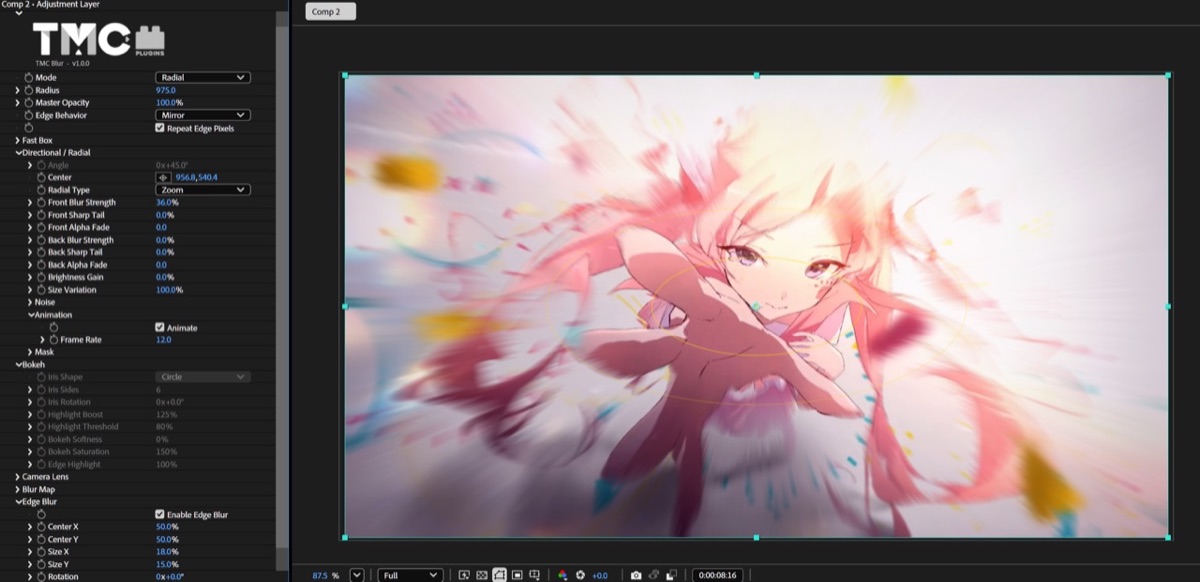
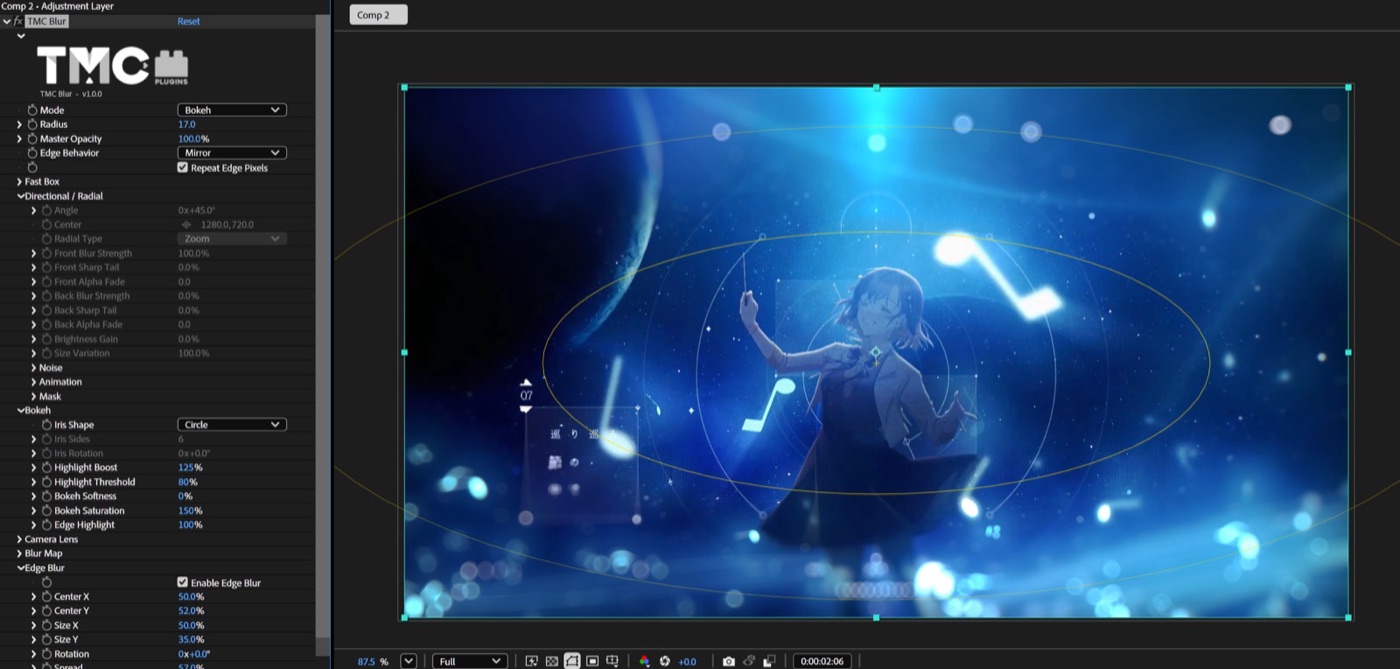
Switch between Fast Box, Gaussian, Directional, Radial (Zoom · Spin), Bokeh, and Camera Lens from one pop-up menu.
02
Anime-style speed lines
Shape the front and back trails separately with Front/Back Blur Strength, Sharp Tail, and Alpha Fade, and add textured speed lines with Noise. Frame Rate in Animation lets you step the noise motion, for example at 12fps.
03
Bokeh and camera lens blur
Iris Shape, Iris Sides, Iris Rotation, and Highlight Boost swell point lights into polygonal bokeh, and Camera Lens goes further with 9 aperture shapes and diffraction fringes.
04
Blur Map and masks
Use another layer as a radius map with Blur Map, and set the blurred area yourself with Edge Blur's elliptical focus. In Directional and Radial, you can also define the area with a mask.
Quick start
Follow these steps in order the first time.
Apply Effect › TMC › TMC Blur to a layer or an adjustment layer.
Choose the blur type in Mode. Fast Box is for a quick blur, Directional or Radial for a sense of speed, and Bokeh for out-of-focus light circles.
Set the strength with Radius, and choose how the frame edges are handled with Edge Behavior.
For speed lines, adjust the front and back trails and Noise in the Directional / Radial group.
Parameter guide
Listed in the same order as the Effect Controls panel.
Effect Controls · TMC BlurClick a group to expand it
Basic parameters5
Mode
Fast BoxGaussianDirectionalRadialBokehCamera Lens
Radius
Master Opacity
The opacity of the whole effect
Edge Behavior
How the area outside the layer is filled when the blur samples past the edge. Clamp extends the edge pixels, Mirror (the default) reflects the image at the edge, and Transparent leaves it transparent.
ClampMirrorTransparent
Repeat Edge Pixels
When on (the default), the area outside the layer is filled using the Edge Behavior setting so the blur doesn't fade into transparency at the edges. When off, the outside is treated as transparent regardless of Edge Behavior.
Fast Box1
Iterations
How many times the calculation repeats. Higher values give a stronger effect and slower renders.
Directional / Radial11
Angle
Center
The center of the effect. Drag it in the Composition panel to move it.
Radial Type
ZoomSpin
Front Blur Strength
Front Sharp Tail
Front Alpha Fade
Back Blur Strength
Back Sharp Tail
Back Alpha Fade
Brightness Gain
Brightens the streaks as a whole. At 0% (the default) it is an ordinary blur that preserves brightness, and higher values make the streaks brighter, as if the light were adding up.
Size Variation
Varies the streak length gradually across the frame so the streaks aren't all the same length (50% by default).
Directional / Radial › Noise5
Noise Variation
Noise Type
Chooses the type of noise pattern.
SmoothSteppedCellular
Band Thickness
The width (px) of the bands used for length variation. The image is divided into bands parallel to the blur, and each band gets its own streak length.
Noise Seed
Changes the noise pattern. The same value always gives the same pattern.
Noise Offset
Moves the noise pattern. Keyframe it to make the pattern flow.
Directional / Radial › Animation2
Animate
When on, the streak noise pattern changes at the Frame Rate interval, so the streaks move in steps like hand-drawn speed lines.
Frame Rate
The frame rate used to make motion look stepped. Lower values look choppier.
Directional / Radial › Mask3
Mask
Chooses the mask or layer that defines where the effect applies.
Invert Mask
Flips the inside and outside of the mask to switch where the effect applies.
Mask Feather
The width over which the mask edge is softened
Bokeh8
Iris Shape
CirclePolygon
Iris Sides
Iris Rotation
Highlight Boost
Brightens points above Highlight Threshold so they bloom into distinct bokeh discs.
Highlight Threshold
Bokeh Softness
Bokeh Saturation
Edge Highlight
Makes the rim of each bokeh disc brighter than its center. At 0 the discs are flat, and higher values give a brighter ring at the edge.
When on (the default), pixels are converted to linear light for the bokeh calculation and converted back afterward.
Focus-Aware Highlights
When on, Lens Highlight Gain applies only to out-of-focus areas, so in-focus parts don't brighten. When off (the default), highlights brighten across the whole frame.
Lens Quality
DraftNormalBest
Blur Map5
Layer
Channel
LuminanceRedGreenBlueAlpha
Placement
Chooses how the blur map layer is fitted when its size differs from this layer.
Center MapStretch Map to FitTop Left of Map
Blur Focal Distance
Sets which brightness in the blur map is in focus (zero blur). The further a value is from this, the more it blurs.
Invert Blur Map
Inverts the light and dark areas of the map that sets the blur strength.
Edge Blur8
Enable Edge Blur
When on, keeps an elliptical area in the center sharp and blurs more toward the edges. It applies on top of the blur from the selected Mode.
Center X
Center Y
Size X
Size Y
Rotation
Spread
Invert Edge Blur
Swaps inside and outside, blurring the inside of the ellipse and keeping the outside sharp.
Practical tips
If the blur is cut off at the layer edge, check Edge Behavior. Buffer expansion is supported, so the blur can spread past the edge.
If the speed lines look too smooth, switch Noise Type to Stepped or Cellular and set the streak thickness with Band Thickness.
To use it like depth of field, put a depth map layer in Blur Map and move the focal plane with Blur Focal Distance.
Where to use it
Anime-style speed lines as a character crosses the frame
Cinematic backgrounds that turn city lights at night or lighting props into round bokeh