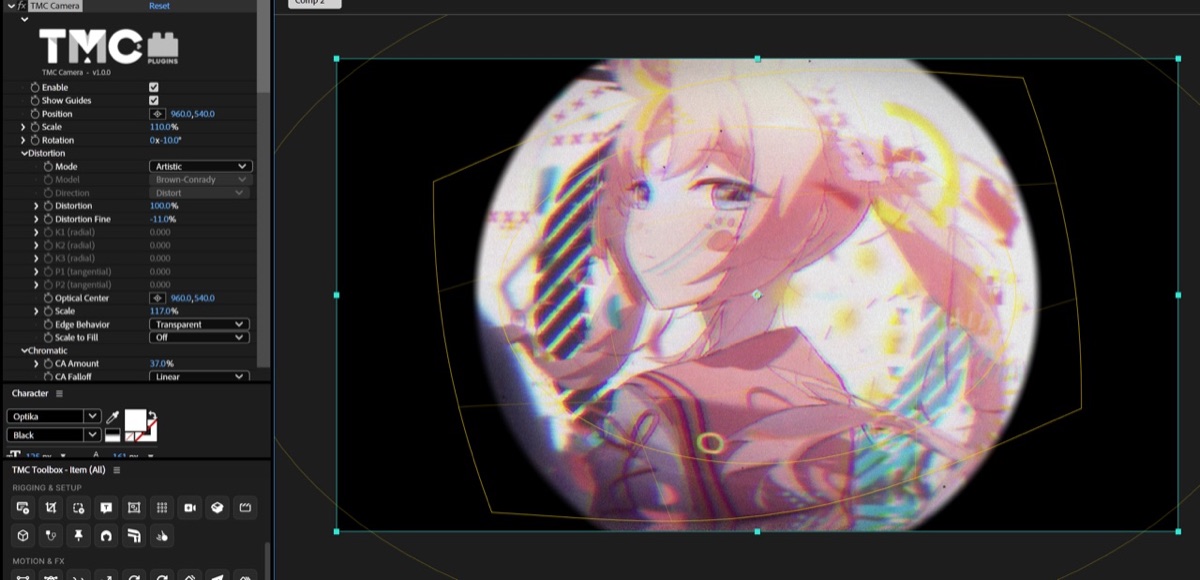
Choose Artistic or Calibration (VFX) mode and the Brown-Conrady or Division model, set the K1–K3 and P1–P2 coefficients directly, and switch between Distort and Undistort.
02
Chromatic
Create anything from RGB separation to rainbow dispersion with CA Amount, Prism Amount, Prism Angle, Spectrum, and Spectral Samples.
03
HandHeld
Make a tripod shot shake as if it were handheld, using Frequency, Position X, Position Y, Rotation, and Perspective in HandHeld.
04
Film Damage · VHS
Turn on Film Damage (dust, scratches, flicker, gate weave) and VHS (RGB Split, Chroma Bleed, Tracking Error, Scanlines, and more) separately.
Quick start
Follow these steps in order the first time.
Apply Effect › TMC › TMC Camera to an adjustment layer.
Add lens curvature with Distortion and chromatic aberration with Chromatic.
Darken the edges of the frame with Vignette, and add shake with HandHeld.
For a retro look, turn on the Film Damage or VHS group.
Parameter guide
Listed in the same order as the Effect Controls panel.
Effect Controls · TMC CameraClick a group to expand it
Basic parameters5
Enable
Turns all of TMC Camera's effects on or off at once (on by default).
Show Guides
When on (the default), draws yellow guides in the Composition and Layer panels. The guides don't appear in the render.
Position
Scale
Rotation
Distortion14
Mode
ArtisticCalibration (VFX)
Model
Chooses the distortion model: Brown-Conrady or Division.
Brown-ConradyDivision
Direction
DistortUndistort
Distortion
Distortion Fine
A secondary distortion for Artistic mode that acts more strongly toward the edges. Set it opposite to Distortion to get a wavy (mustache) distortion, where the center and the edges bend in opposite directions.
K1 (radial)
The first Brown-Conrady radial distortion coefficient, used in Calibration (VFX) mode
K2 (radial)
The second radial distortion coefficient
K3 (radial)
The third radial distortion coefficient
P1 (tangential)
The first tangential distortion coefficient, caused by lens decentering
P2 (tangential)
The second tangential distortion coefficient
Optical Center
The principal point that the distortion is centered on
Scale
Edge Behavior
How the area outside the frame is filled when the distortion samples past the edge
TransparentClampRepeatMirror
Scale to Fill
When set to Auto, scales the image up automatically so the empty edges left by the distortion don't show.
OffAuto
Chromatic6
CA Amount
CA Falloff
Chooses how chromatic aberration grows from the center to the edges: Linear or Quadratic.
LinearQuadratic
Prism Amount
Prism Angle
Spectral Samples
Sets how many steps the rainbow dispersion is split into. Higher values are smoother but render more slowly.
Spectrum
Chooses whether dispersion colors are approximated quickly with three RGB colors (RGB (Fast)) or calculated across the visible spectrum (Rainbow (Spectral)).
RGB (Fast)Rainbow (Spectral)
Vignette15
Vignette Type
Natural (cos4)CustomMechanical
Vignette Amount
FOV (Natural)
Midpoint
Feather
The width over which edges are softened
Roundness
Vignette Width
Vignette Height
Vignette Rotation
Vignette Center
Vignette Color
Blend Mode
How the effect is blended with the original
NormalMultiplyScreenOverlaySoft LightAdd
Flicker
How much the brightness flickers irregularly
Flicker Frequency
Flicker Seed
Changes the flicker pattern.
Iris9
Enable Iris
Iris Radius
Blades
The number of blades that make up the iris
Iris Rotation
Blade Curvature
Iris Feather
Invert
Composite BG
Chooses what fills the area outside the iris: Transparent, Black, or Color. Color fills it with BG Color.
TransparentBlackColor
BG Color
HandHeld9
Enable HandHeld
Frequency
Position X
Position Y
Rotation
Perspective
Smoothness
Seed
Changes the random pattern. The same value always gives the same result.
Edge Cover
Chooses what fills the out-of-frame area revealed by the shake (Mirror by default).
Use Edge BehaviorRepeatMirrorScale To Cover
Film Damage17
Enable Film Damage
Dust
Scratches
Flicker
How much the brightness flickers irregularly
Gate Weave
Adds the slight drift of the whole frame caused by the film moving in the gate.
Shake
Sets how strongly the whole frame shakes at random.
Shake Direction
Shake Speed
Dust Roughness
Sets how rough the outlines of the dust particles are.
Scratch Wobble
Sets how far the vertical scratches wobble from side to side.
Scratch Break-up
Sets how much the scratches break up vertically into pieces.
Dust Color
Scratch Color
Blend Mode
How the effect is blended with the original
NormalMultiplyScreenOverlay
Opacity
Animation Speed
Sets how fast the film damage pattern changes over time.
Random Seed
Changes the random pattern. The same value always gives the same result.
VHS24
Enable VHS
Amount
Degrade
Sets how much the overall picture degrades, as if the tape had been copied over several generations.
Softness
Sharpen
RGB Split
Sets how far the R, G, and B channels are offset horizontally.
Chroma Bleed
Chroma Shift
Tracking Error
Adds horizontal lines slipping out of place, as when VHS head tracking is off.
Line Jitter
Wave
Wave Speed
Interlace
Noise
Color Noise
Dropouts
Adds signal dropouts from tape damage that show up as horizontal streaks. Dropout Style sets how they look.
Dropout Length
Dropout Thickness
Sets the vertical thickness of the dropout lines.
Dropout Style
WhiteBlackInvert
Scanlines
Sets the strength of the CRT scanline pattern.
Head Switching
Adds the shift in the last few lines at the bottom of the frame, where the VHS heads switch.
Ghost
Animation FPS
Sets how many times per second the VHS noise pattern changes (24 by default).
Seed
Changes the random pattern. The same value always gives the same result.
Quality2
Resample
Bilinear (Fast)Bicubic (Sharp)
Anti-alias
OffAdaptive
Other parameters1
Strength
Practical tips
Turn on Show Guides to draw the vignette area, the distorted layer border, and a 3x3 grid in the Composition panel.
If the edges of the frame go empty, change Edge Behavior to Clamp or Mirror, or set Scale to Fill to Auto.
It's a 2D optics effect, so it doesn't respond to 3D cameras. It's best placed on an adjustment layer at the top of the layer stack.
Where to use it
VHS retro MVs that look like they were shot on a camcorder
Flashback scenes with a film-camera texture
An on-the-scene feel created with lens distortion and handheld shake